Manage Flows
Flows have their own module in the module bar. The Flows page lists every Flow in a table with its folder, status, trigger type, name, and description. From here you can organize Flows into folders, search and filter the list, duplicate a Flow, and import and export Flows.
Organize Flows into Folders
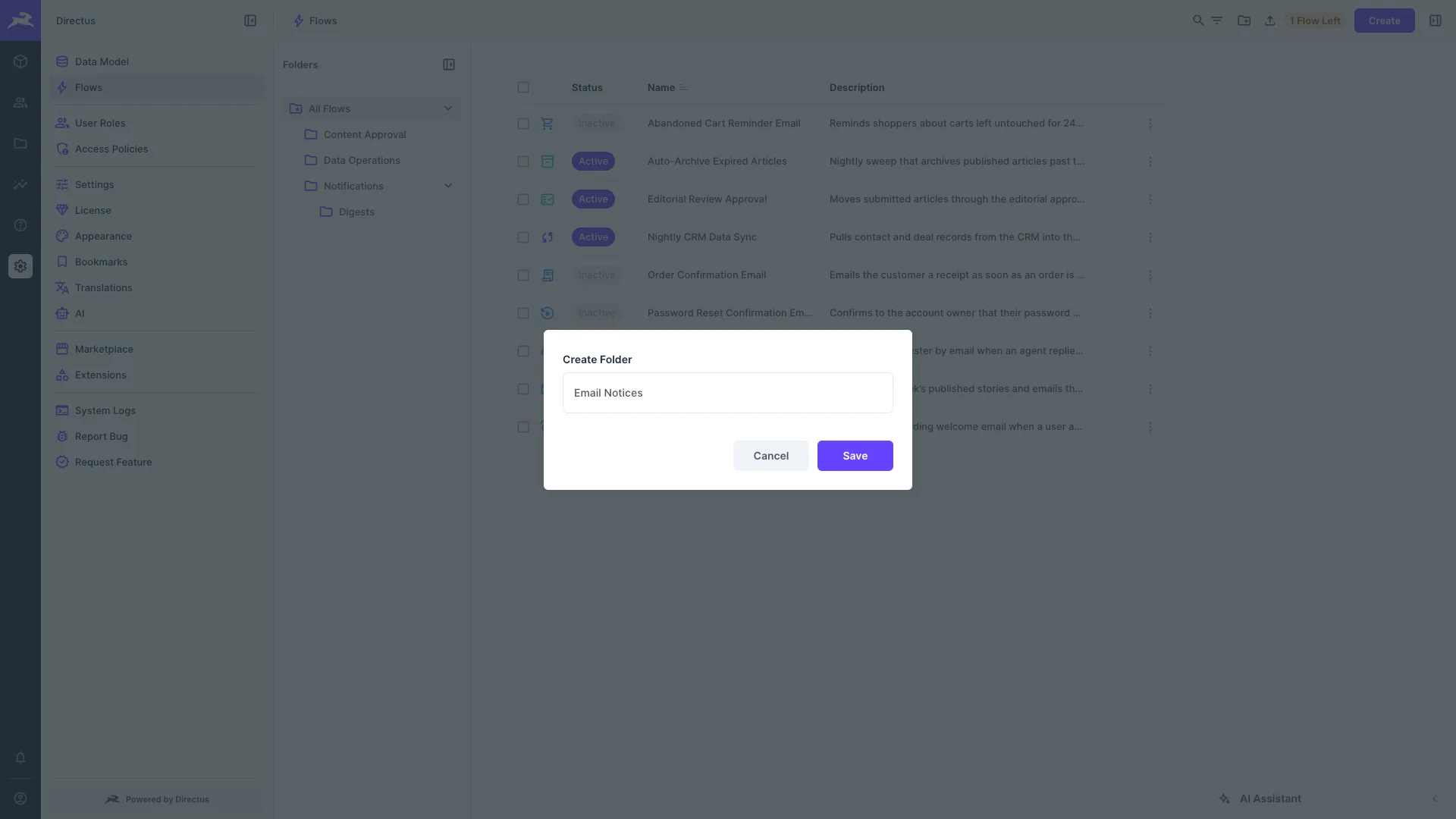
The navigation pane on the left lists your folders. All Flows is the root and shows every Flow in the project. Selecting a folder shows only the Flows inside it, and the folder is stored in the page URL so you can bookmark or share a link to it.
- Create a folder — Select the Create Folder button in the header bar and enter a name. The new folder is nested under the folder you currently have open.
- Rename, move, or delete a folder — Open the folder's context menu in the navigation pane and select Rename Folder, Move to Folder, or Delete Folder.
- Move Flows — Open a Flow's context menu and select Move to Folder. To move several Flows at once, select them in the table and use the Move to Folder button in the header bar.
Search and Filter Flows
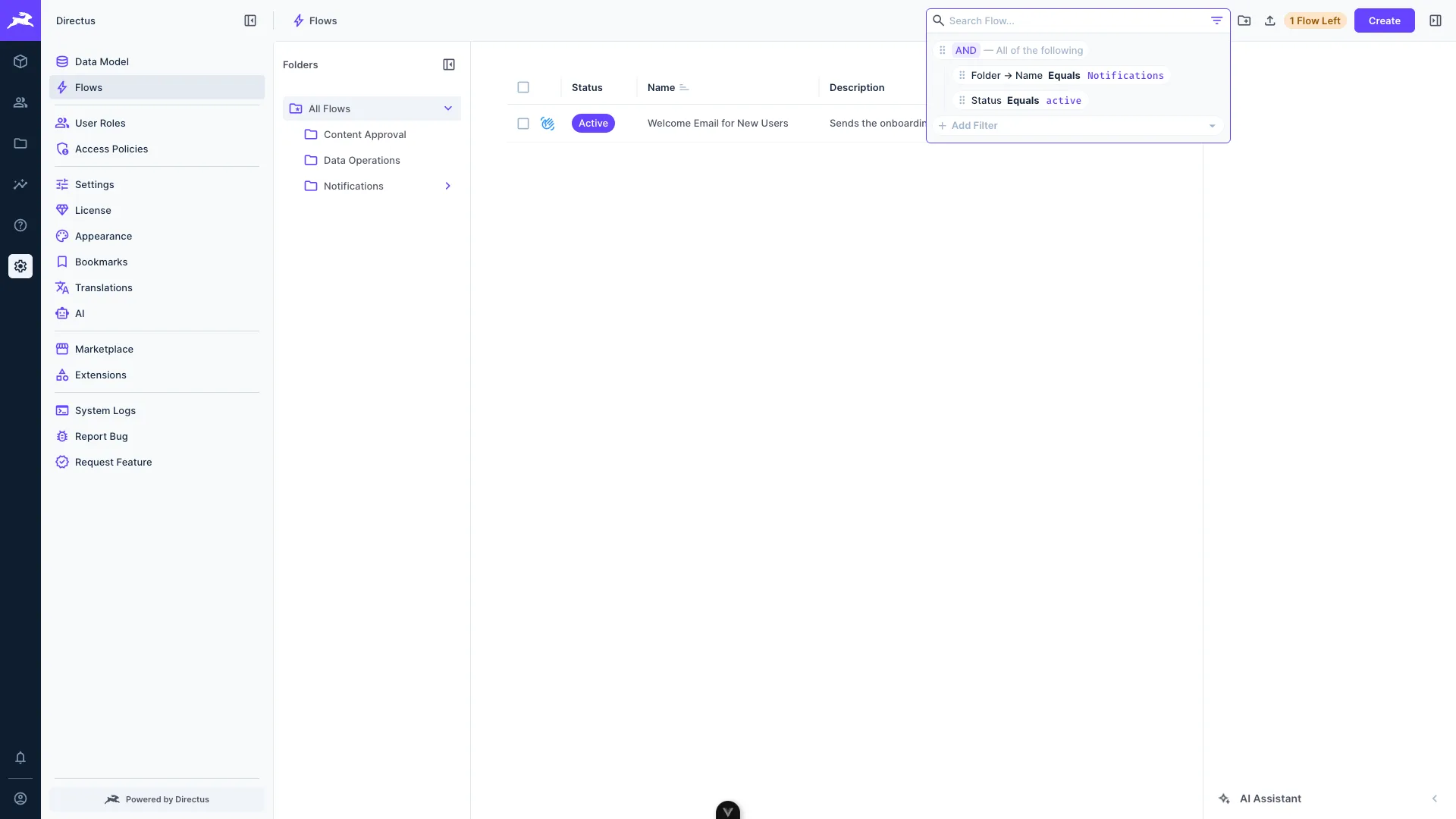
Use the search box in the header bar to find Flows by name. Select the filter icon to add conditions on Flow fields such as Status, Trigger, or the folder's Name.
Duplicate a Flow
To copy a Flow together with its trigger configuration and all of its operations, open the Flow's context menu and select Duplicate Flow. Enter a name for the copy and select Duplicate. The copy is placed in the same folder as the original.
Export Flows
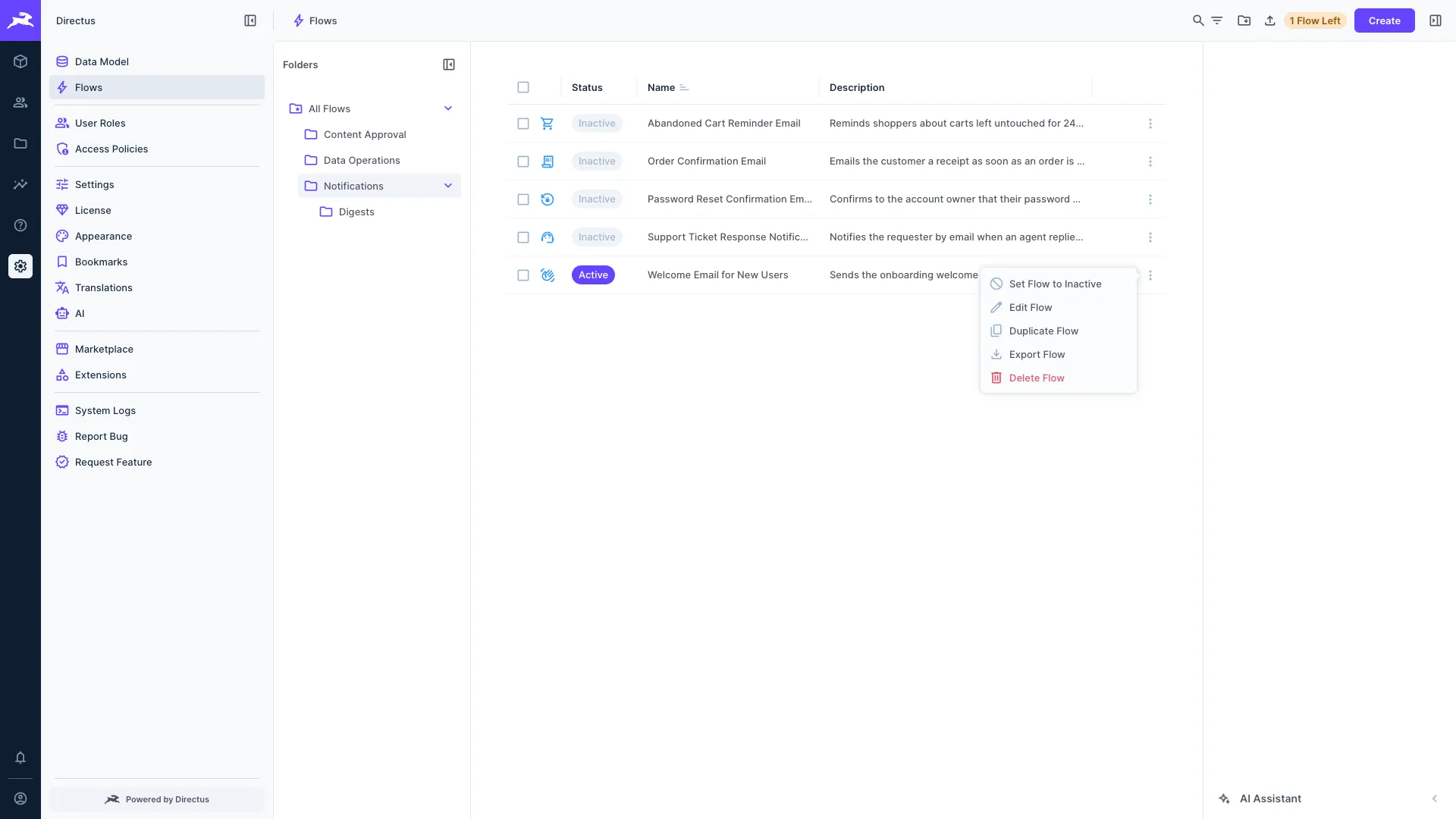
To export a single Flow, open its context menu and select Export Flow. To export several Flows at once, select them in the table and use the Export Flows button in the header bar. Each export is a JSON file containing the Flow and its operations.
Import a Flow
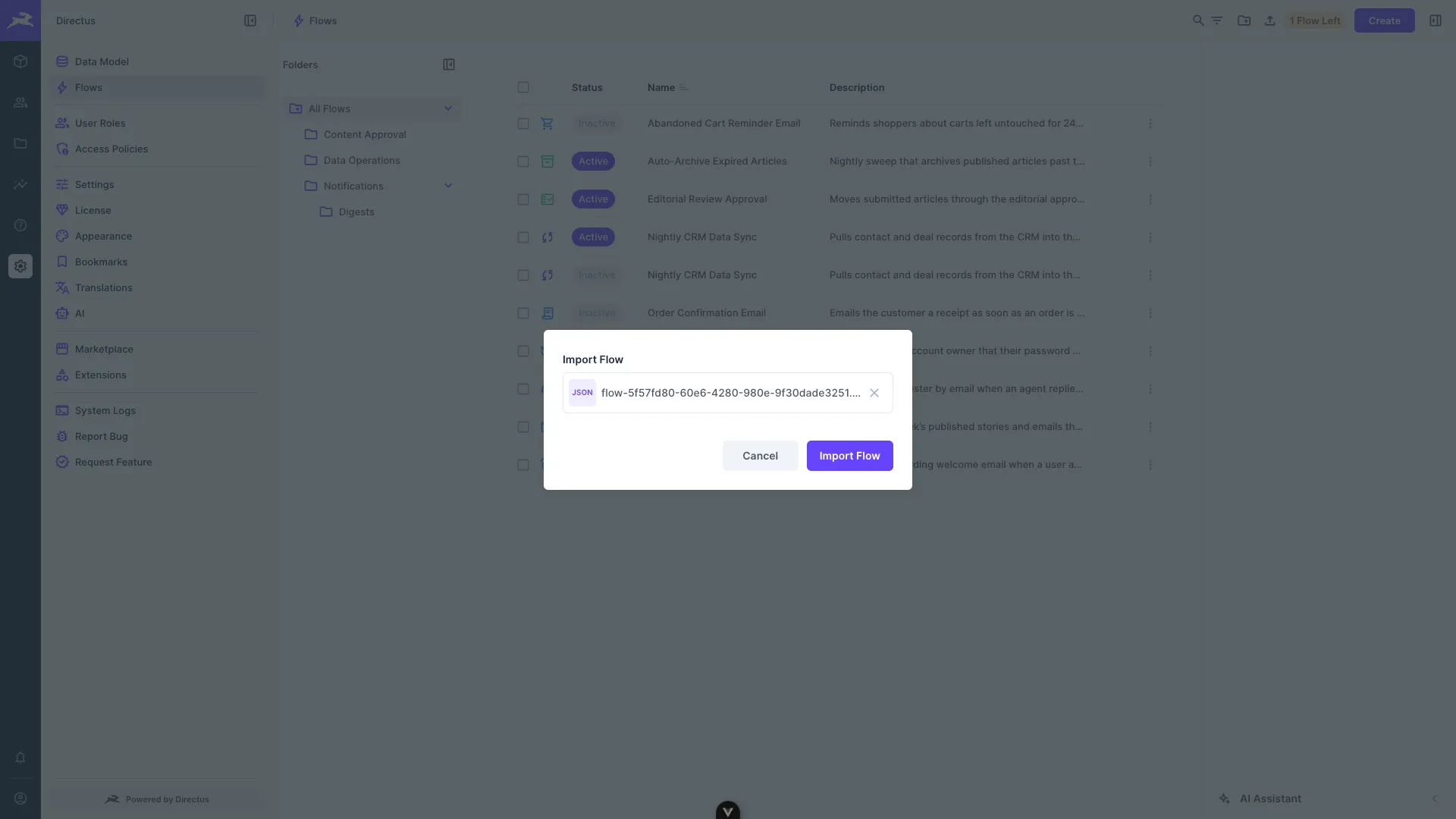
To import a Flow, open the right-hand sidebar and expand Import. Choose a JSON file that was previously exported from Directus, then select Start Import. If a folder is open when you import, the Flow is placed in that folder.
Directus rejects files that are not valid JSON, files that are not a Flow export, and exports that contain an operation belonging to a different Flow.
Get once-a-month release notes & real‑world code tips...no fluff. 🐰